 Sipu Jha
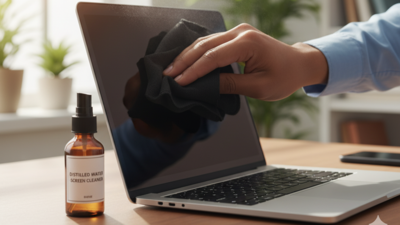
Over time, computer screens accumulate dust, fingerprints and smudges that affect visibility and viewing quality. Cleaning a laptop screen involves using appropriate materials and techniques to avoid damaging the display’s protective coating. Some users unintentionally damage their screens by using harmful chemicals or abrasive materials they think are adequate for cleaning. However, in reality, these materials can cause immediate or even permanent damage to the display. By understanding the right materials to use, you can clean your screen effectively and confidently. A clean screen offers better clarity and reduces eye fatigue when working for extended periods on the laptop display. It’s important to remember that a laptop display is not just a regular piece of glass. It’s more delicate and requires a special cleaning process to minimise damage. This fragile nature should guide your cleaning process, making you more cautious and attentive. Certain cleaning products can harm the anti-glare properties by stripping them away, causing streaks, or even damaging the panel itself. Understanding which materials to use and which to avoid will help preserve your screen’s quality and give you more time with your device..
Things to keep in mind before you start cleaning your laptop screen
Before cleaning your laptop screen, prepare properly to prevent accidental damage. Here are some steps that you can follow:
- Turn off and unplug your laptop or monitor.
- Allow it to cool completely if it has been in use.
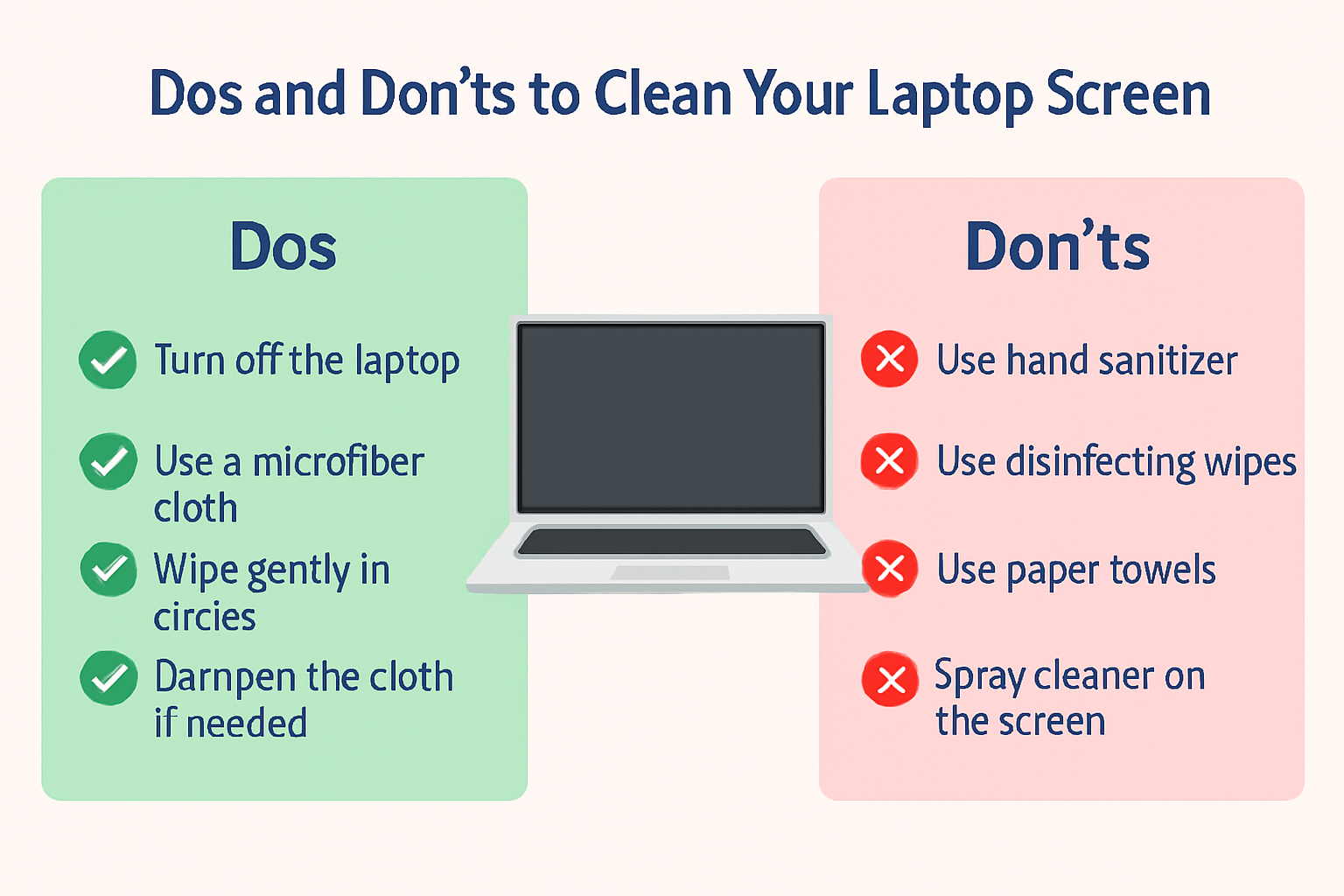
- Gather cleaning materials, including a microfiber cloth and distilled water.
- Ensure the area is well-lit so you can clearly see the surface while cleaning.
What materials should be used for cleaning laptop screens
These are the ideal materials that you should be using to clean your laptop screens:
What to avoid while cleaning laptop screens
Using unsuitable cleaning materials can harm the screen coating or cause streaks. Avoid using these materials to keep your laptop screen safe:
How to clean a laptop screen safely
Here’s a step-by-step guide to cleaning a laptop screen safely:
- Turn off and unplug the laptop.
- Wipe the screen gently with a dry microfiber cloth to remove dust.
- For smudges, dampen the cloth slightly with distilled water.
- Move the cloth in slow, circular motions without applying pressure.
- If residue remains, use a 50/50 vinegar/distilled water solution sparingly.
- Allow the screen to air dry completely before turning the device back on.
How to clean different types of screens
All laptops don’t have the same screen type. So you should use different material for cleaning different types of screen. Use the guide below:
Laptop screen maintenance and prevention tips
Regularly keeping the laptop screen clean helps reduce buildup and prevent damage over time. Here are a few preventive steps that you can follow:
- Place a microfiber cloth between the screen and keyboard before closing the laptop.
- Store the device in a case or sleeve when not in use.
- Avoid eating or drinking near the laptop.
- Clean the screen once every 1 to 2 weeks, or as needed.
- Use a soft duster brush or compressed air to remove dust from corners.
Cleaning a laptop’s screen is easy when done with attention to detail. By using microfiber cloths, distilled water, and avoiding chemicals or paper-based products, users can keep the display clear and prolong the screen’s life. Regular maintenance not only keeps the laptop looking neat but also supports comfortable screen viewing during work or study sessions.







 English
  हिन्दी