 Sipu Jha
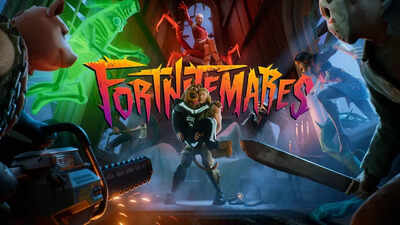
If you jumped into Fortnite and got hit with the “servers not responding” message, you’re not alone. It’s one of those moments where your excitement for a quick match turns into a mini tech crisis. But don’t worry. Before you rage-quit or assume it’s your Wi-Fi, here’s what’s actually going on and how you can fix it across PS5, PC, and Xbox.
Why Fortnite Servers Might Be Down
Fortnite’s servers aren’t perfect. Sometimes, it’s a global outage (yes, everyone’s suffering). Other times, it’s your own internet, console, or an update gone rogue. However, at this time, the Fortnite servers might be down due to maintenance for the new v37.51 update. Other common reasons include:
Epic Games pushing a new update or hotfix- Scheduled maintenance
- Regional server overload
- Local network or DNS issues
If your friends are also stuck on the same screen, it’s most likely Epic’s fault. If not… it might be your setup. Let’s fix that.
How to Fix Fortnite Server Issues on PS5?
If Epic’s servers are fine but you’re still stuck, try these steps:
- Restart your console. It sounds too simple, but it refreshes your connection.
- Check your internet. Head to your PS5 settings → Network → Test Internet Connection.
- Rebuild your database. Turn off your PS5 completely → hold the power button until you hear two beeps → choose “Rebuild Database.”
Reinstall Fortnite . If all else fails, deleting and reinstalling the game can fix corrupted files causing connection errors.
Still not working? It’s probably temporary maintenance. Grab a snack, come back later.
How to Fix Fortnite Server Issues on PC?
PC players, you’ve got a few more options up your sleeve:
- Restart the Epic Games Launcher. Close it completely (check Task Manager) and reopen.
- Run as Administrator. Right-click the launcher and hit “Run as Administrator.”
- Check your DNS. Go to your network settings and switch to Google DNS (8.8.8.8 / 8.8.4.4).
- Disable your VPN (if any). Fortnite and VPNs don’t mix well sometimes.
Also, make sure your firewall isn’t blocking the game; it happens more often than you’d think.
How to Fix Fortnite Server Issues on Xbox?
Xbox users, here’s your checklist:
- Restart your console and router.
- Check Xbox Live Status. If Xbox’s own services are down, Fortnite won’t load either.
- Clear cache. Hold the power button on your console for 10 seconds to shut down completely, then restart.
- Reinstall Fortnite. Sometimes it’s the cleanest fix.
Fortnite updates and new season launches almost always cause short-term outages. So if your game won’t connect right after a big update, don’t panic. Wait 15–30 minutes, and it usually sorts itself out.






 English
  हिन्दी